Thieu Nguyen


Introducing Pictory AI — Create Videos from Text with Ease
In the era of content and video dominance, Pictory AI stands out as a powerful tool that transforms your written content into engaging videos — automatically. With Pictory, you don’t need to be a video editor or have production skills to produce professional-looking videos.
Here’s what makes Pictory AI compelling:
Text-to-video conversion: You paste (or type) your script, and Pictory converts it into a video with scenes, visuals, and transitions.
Text-to-speech (TTS): It can generate a natural-sounding voiceover from your text, saving you time and effort.
Auto summarization / clip extraction: For long videos or long-form content, Pictory can extract the key parts and break them into shorter clips.
Automatic subtitle generation: It generates captions/subtitles automatically, improving accessibility and viewer engagement.
Video-to-text conversion: You can extract transcripts or rewrite video scripts based on existing video content.
These features allow creators, businesses, and marketers to quickly produce videos — ideal for YouTube, social media, or internal use — often without worrying about copyright issues.
How to Use Pictory AI — Step-by-Step Guide
Below is a practical walkthrough of creating a video with Pictory AI:
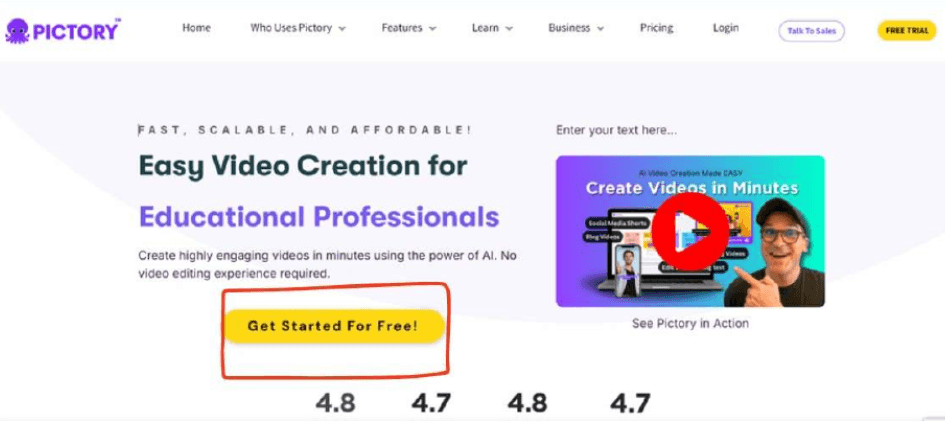
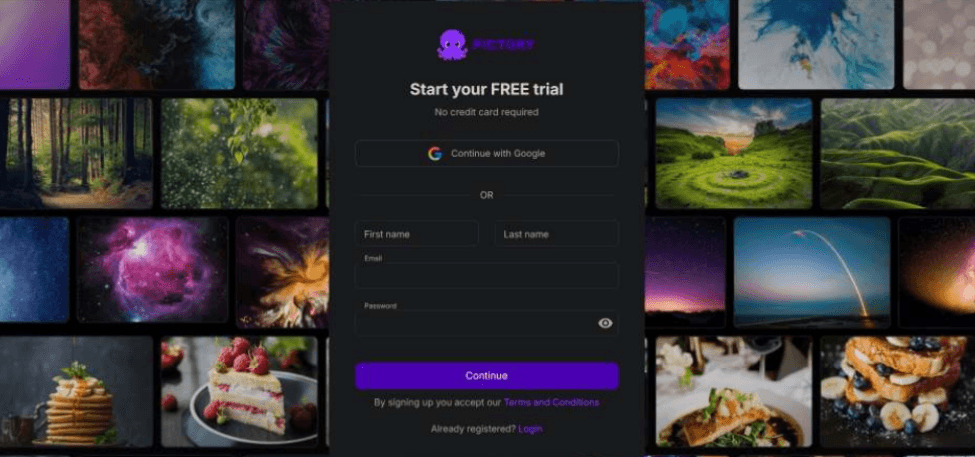
1. Sign up / Log in
Go to the Pictory website and click “Get Started for Free” (or a similarly labeled button).
You can register with an email or use a Google account to streamline the process.
2. Choose Your Workflow / Feature
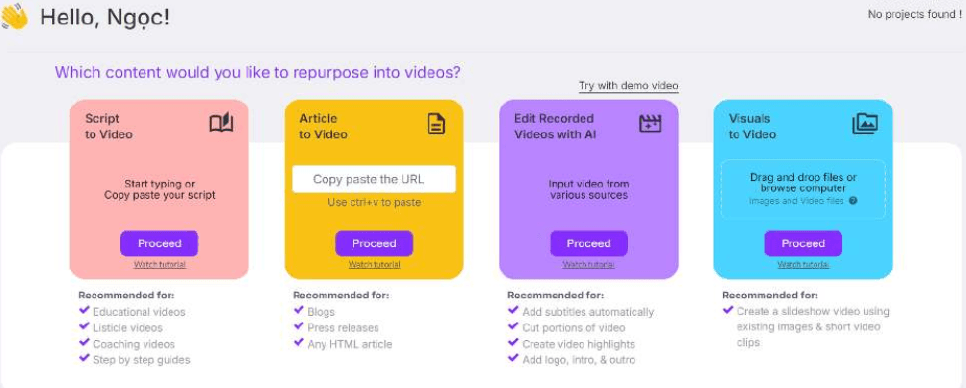
Pictory offers multiple workflows or modes. For example:
Text-to-video: You provide a script or textual content, and the tool creates video scenes accordingly.
(Other modes might include video summarization, script-to-scene, etc.)
In this example, choose the “Text-to-video” mode and click “Proceed” or similar
3. Input Your Text / Script
Paste or type the content you want to convert into video.
You might refine or edit the script slightly to make it more conversational or better matched to visuals.
When ready, click “Proceed”
4. Edit & Customize Scenes
Once the initial draft is generated, Pictory will break it into scenes (frames or segments). Here’s what you can adjust:
Scene duration: Adjust how long each scene lasts (in seconds). Studocu
Preview: Use the preview feature to see how the video flows and check transitions. Studocu
You can also swap images, visuals, or layout for each scene based on your preference. (This may be part of the interface though not explicitly detailed in your source.)
5. Generate & Download
Once you are satisfied with your edits, click “Download” and choose your format (video).
The system will process the video and prepare the final file.
Then you simply download the finished video.
And that’s it — you’ve created a video using Pictory AI!
Tips & Best Practices
Keep your script clear and concise: Videos are more engaging when content is to the point.
Adjust scene durations thoughtfully: Don’t rush or overstay on transitions.
Review the TTS voice: If the auto voice has pronunciation or pacing quirks, tweak the text or voice settings.
Use visuals that reinforce the message: Replace default images with more relevant ones if possible.
Leverage subtitles: They make your video more accessible and help with engagement.
Let us know what you think in the comments!


Created with ©systeme.io